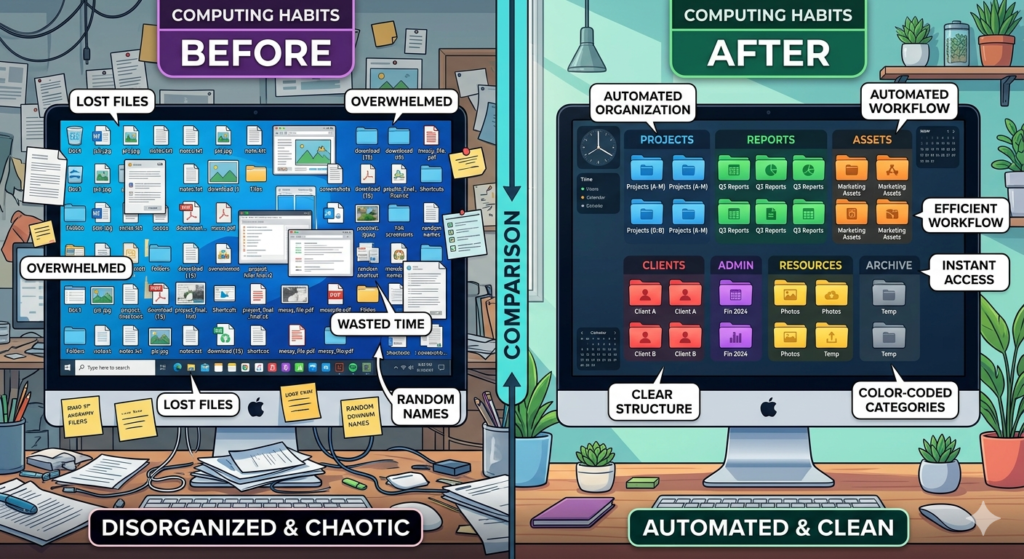
Every solopreneur knows the panic of losing a critical document minutes before a client call. Your desktop is cluttered with random screenshots, your “Downloads” folder contains hundreds of unnamed PDFs, and finding last month’s invoice feels like an archeological dig. This digital chaos drains your cognitive energy and slows down your operational speed significantly.
You cannot scale a business if you spend 20 minutes a day just looking for the right files. While manual spring cleaning feels good temporarily, the mess always returns.
The only permanent solution is to build a system that sorts itself. This guide will teach you exactly how to organize digital files automatically so that every document instantly lands in its proper home without you dragging and dropping a single item.
What is Automated File Organization?
Before installing any software, we must understand the core mechanism of the strategy.
Automated file organization is the process of using smart software rules to sort, rename, and move digital documents into specific folders without manual intervention. By relying on triggers like file extensions, creation dates, or specific keywords, it instantly routes assets to their designated storage locations.
Think of it as a digital mailroom. Instead of throwing all your mail into one giant pile on the kitchen table, an invisible assistant reads the envelope and places the bills, personal letters, and junk mail into their respective sorting trays instantly.
The Prerequisite: File Naming Conventions
Computers are incredibly fast, but they are incredibly literal. A software tool cannot sort a file named “Final_Version_v3_ActualFinal.pdf” because it lacks logical context. Automation requires standardization.
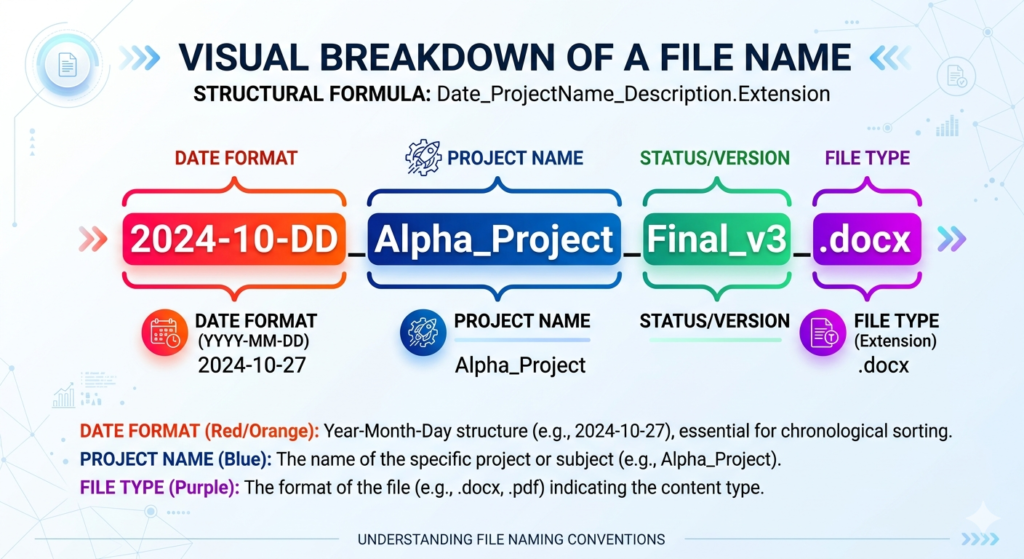
Before you can automate routing, you must adopt strict file naming conventions. A naming convention is a standardized formula for naming every file you create or download.
A highly effective formula for solopreneurs is: [YYYY-MM-DD]_[Client/Project]_[DocumentType].
- Example:
2026-04-04_SmithCorp_Invoice.pdf
When every file follows a predictable pattern, automation software can easily read the name and know exactly where the file belongs based on the client name or document type.
Tools for a Total Digital Declutter
Once your naming habit is established, you can introduce the “invisible assistant” to handle the heavy lifting. This requires a small piece of utility software that watches your folders in the background.
If you are a Mac user looking to perform a digital declutter, an application like Dropbox is considered the industry standard. (Windows users can use built-in tools like Power Automate or third-party apps like DropIt).
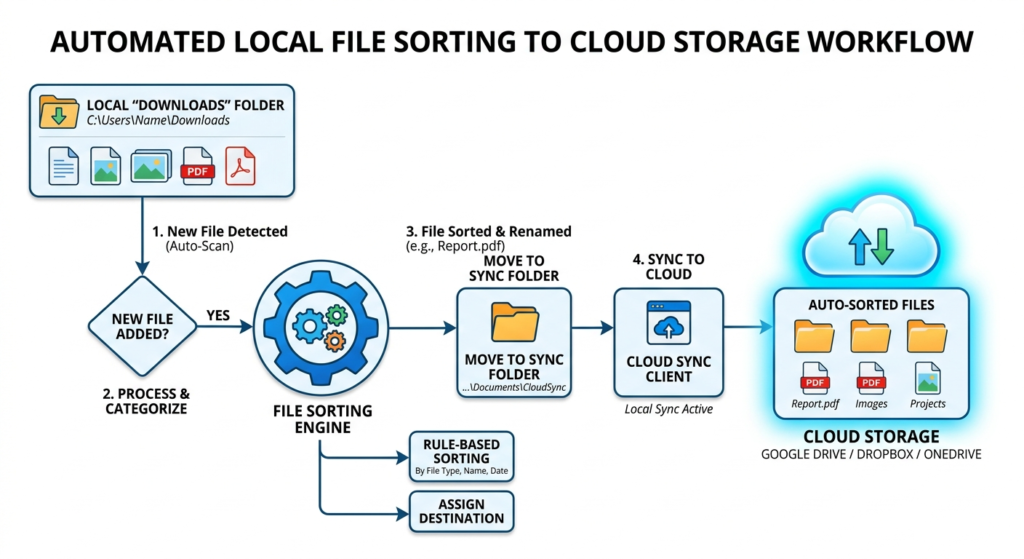
These tools monitor specific locations—like your notorious Downloads folder. You can create a rule that says: “If a file is a PDF, and the file name contains ‘Invoice’, automatically move it to the ‘Financials 2026’ folder.” The moment you download a file that matches those parameters, it vanishes from your Downloads and appears in the correct client folder instantly.
Setting Up Automated Cloud Storage Workflows
Organizing files locally on your computer is only the first step. For a solopreneur, data must be accessible from anywhere and securely backed up. This requires integrating your local organization with automated cloud storage.
When you combine local sorting rules with a cloud-syncing folder (like Google Drive, OneDrive, or Dropbox), your workflow becomes seamless. You download a file, your local utility app sorts it into the correct client folder, and the cloud storage immediately syncs that newly sorted file to the web.
This ensures that your backup infrastructure happens continuously in the background. To understand how to integrate this file storage properly into the rest of your business software, refer to our foundational guide: The Perfect No-Code Tech Stack for Solopreneurs.
Automating Archival and Deletion
A clean system is not just about keeping the files you need; it is also about destroying the files you don’t. Digital hoarding slows down your computer and makes your search functions less effective.
You can set up time-based automation rules to handle the trash.
- The 30-Day Rule: Configure your software to automatically delete any screenshot or
.zipfile in your Downloads folder that is older than 30 days. - The Archive Rule: Instruct your system to look at active project folders. If a file has a “creation date” older than one year and hasn’t been opened in six months, automatically move it to a compressed “Cold Storage Archive” folder.
This guarantees that your active workspace only contains the assets relevant to your current business operations.
Conclusion
A chaotic digital workspace directly translates to a chaotic mind. Figuring out how to organize digital files is less about manual cleaning and entirely about building intelligent systems. By adopting rigid naming conventions and utilizing software utilities to route, sync, and delete your assets automatically, you create a frictionless backend. You will never waste another minute searching for a lost contract, allowing you to dedicate all your focus to the work that matters.
Frequently Asked Questions (FAQ)
Is it better to rely on folders or the computer’s search function?
While modern search functions are powerful, relying solely on search is dangerous. If you cannot remember the exact name or date of a file, search becomes useless. A logical folder structure acts as a safety net, allowing you to visually browse your assets by category and project.
Will automated file routing accidentally delete my files?
If you set up a “Move to Trash” rule incorrectly, yes, it can happen. Always test your automation rules on a temporary folder with duplicate test files before applying the rule to your entire computer.
How deep should my folder structure go?
Avoid “deep nesting.” If you have to click through seven different folders to find a document, the system is too complex. Aim for a maximum depth of three to four levels (e.g., Business > Clients > Active > ClientName).
Can I automate file organization on my mobile device?
Mobile file automation is generally more restricted than desktop automation due to the secure “sandboxing” of mobile operating systems (especially iOS). However, using cloud storage apps with built-in camera scanning and routing features can help sort mobile files directly into your primary cloud structure.